Monthly Archives: February 2017

While attempting to upgrade a ESXi host from 6.0.0.3073146 to the latest 6.x build (6.0.0.update02-4192238) via CLI (see my post here about pathcing via CLI)

I got the following error:

[DependencyError]
VIB VMware_bootbank_esx-base_6.0.0-2.43.4192238 requires vsan >= 6.0.0-2.43, but the requirement cannot be satisfied within the ImageProfile.
VIB VMware_bootbank_esx-base_6.0.0-2.43.4192238 requires vsan << 6.0.0-2.44, but the requirement cannot be satisfied within the ImageProfile.
Please refer to the log file for more details.

The exact build on the error may be different on yours, but the issue is the same. I found this KB from VMware and decided to make a post that gets right to the point: VMware KB

This error occurs because the newest version of VSAN (which is built into ESXi) is looking for a specific base hypervisor build (esx-base). In order to run the update successfully, you’ll need to define the update profile for the VIB you are using. Its actually a lot easier than it may sound.

First, lets find the software profile the VIB you will be using contains. Run the following command, pointing the destination to the .zip VIB you uploaded to a datastore on the host.

esxcli software sources profile list -d <location_of_the_esxi_zip_bundle_on_the_datastore>

It will output something similiar to this:

That Name is the Profile you will need to add to your update command.
So in my case, the update command would look like this (highlighting added for emphasis):

esxcli software profile update -d /vmfs/volumes/datastore1/VMware-ESXi-6.0.0.update02-4192238.x86_64-Dell_Customized-offline-bundle-A04.zip -p Dell-ESXi-6.0U2-4192238-A04

It should update and finish with no errors:

The final step is to issue a reboot command, and you are done.

vSphere 6.5 – Transport (VMDB) error -45: Failed to connect to peer process

While upgrading some Cisco UCS B200 M3 Servers from vSphere 6.0 to 6.5, I ran into an error that I could not figure out. After upgrading the first Cisco Blade to 6.5, I could not vMotion any VMs from the older 6.0 host to the newly upgraded 6.5 host. I would get the following error:

Transport (VMDB) error -45: Failed to connect to peer process

I was able to vMotion a powered off VM to the new host, but when I attempted to power on the VM, I got the same error: Transport (VMDB) error -45: Failed to connect to peer process

After poking around for awhile, I decided to turn to the VMware community, where I most mostly seeing this error with people using Workstation and Fusion products, but there wasn’t much going on with ESXi environments. I made sure to use the ESXi 6.5 Cisco Media for the original installs and this upgrade, and I assumed there had to be a driver/component issue with all of this. I tried updating by booting into the ISO and running the upgrade from there. After attempting to manually upgrade drivers and firmware, the solution that worked for me was the following:

Reinstall the freaking host from scratch! 

There you have it. Such a simple solution 🙂
Honestly, I have no idea why the reinstall was necessary. I ran into the same issue again when trying to upgrade that second host, and I even tried upgrading it using the an alternative method (Using ESXCLI and Update Manager), but no luck.

I did not call VMware Support on this, but I did submit the bug report. I would love to hear from someone who figured out the root cause and workaround.

Create Bootable VMware ESXi Installer USB Drive

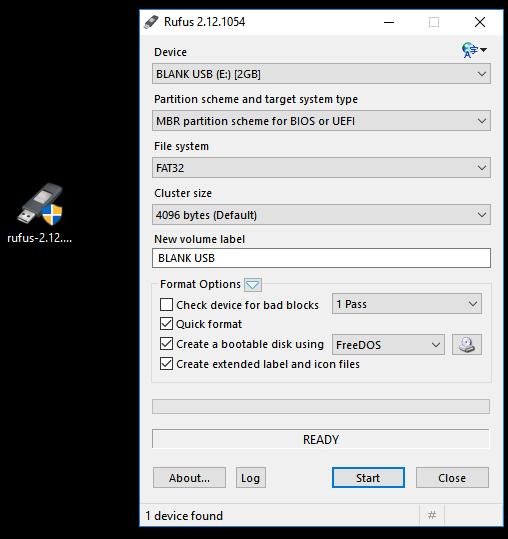
Getting ESXi installed on a server today is more often done through the servers BMC (iLO, iDRAC, CMC, etc). But this guide might be helpful when installing vSphere on a standalone server. The tool of choice for any bootable USB is my friend Rufus.

There are three things you will need to do this:

  • Download Rufus Here
  • Download whatever .iSO image you want to be bootable (whether its WIndows, ESXi, or Linux).
  • Use a somewhat quality USB Flash Drive (1GB or larger). For some reason, I will run into some cheap-o thumb drives that do not boot anything. If your boot drive doesn’t work, try a different flash drive


Here are the easy steps:

  • Insert your blank (or soon to be formatted) flash drive into your PC
  • Open Rufus

  • Under Device, select the flash drive you wish to format and use
  • Select MBR partition Scheme for BIOS or UEFI
  • Filesystem = Fat32
  • Use default Cluster Size (4096 bytes)
  • Click the icon next to FreeDOS and select your ISO image
  • Rename the New Volume Label to whatever you wish to see when you insert the flash drive into a PC
  • Click Start

  • When prompted to replace menu.c32, select Yes

  • Finally, click Yes to the warning that this flash drive will be formatted (destroyed)


That’s it. It will take a couple of mins, but you should have a bootable flash drive.